
Connecting Imagify with GitHub Copilot via MCP
Before continuing, make sure you have already completed Step 2.1: Make your WordPress site accessible to your AI assistant and have the following information ready:
- Website URL
- WordPress username
- Application Password
Prerequisites
Before connecting GitHub Copilot, ensure you have:
- Visual Studio Code (VS Code)
- An active GitHub Copilot subscription
- GitHub Copilot Chat extension installed
- Enabled MCP support in VS Code ( Refer to this documentation to enable)
Step 1: Open the MCP Configuration File
- Open Visual Studio Code
- Ensure GitHub Copilot Chat is installed and active.
- Open the Command Palette.
- Search for and open:
mcp.json
Step 2: Add Your WordPress MCP Configuration
Add the following configuration to your mcp.json file:
{
  "servers": {
    "my-wordpress-site": {
      "type": "stdio",
      "command": "npx",
      "args": [
        "-y",
        "@automattic/mcp-wordpress-remote@latest"
      ],
      "env": {
        "WP_API_URL": "https://your-website-domain/wp-json/mcp/mcp-adapter-default-server",
        "WP_API_USERNAME": "your-wordpress-username",
        "WP_API_PASSWORD": "your-application-password",
        "OAUTH_ENABLED": "false"
      }
    }
  }
}
Replace the following placeholders
| Placeholder | Description |
|---|---|
| you-website-domain | Your website domain |
| your-wordpress-username | Your WordPress username |
| your-application-password | Application Password generated in Step 2.1 |
Step 3: Review the Updated Configuration
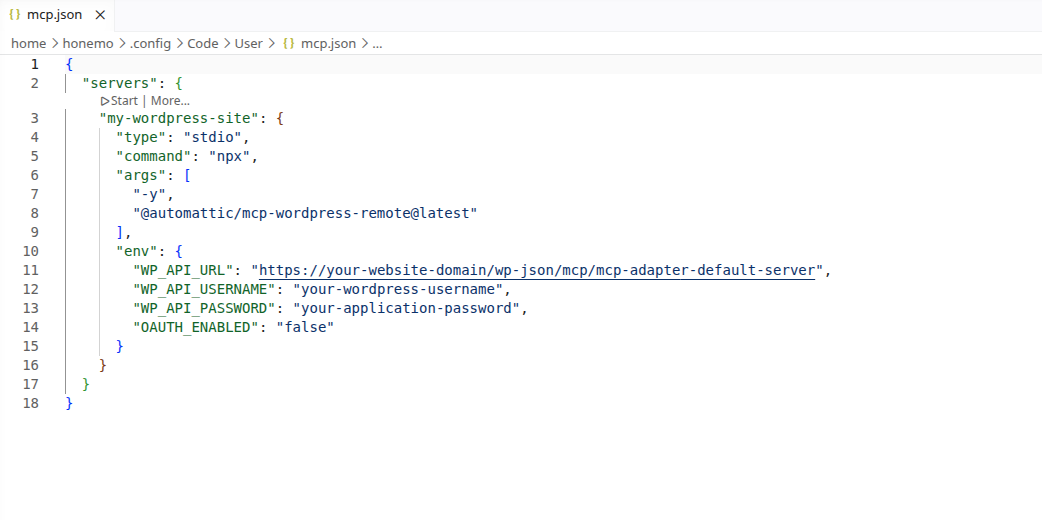
Your configuration should now contain:
- Your WordPress MCP configuration
- Any existing MCP server configurations you already use
| ⚠️ Important: If your mcp.json file already contains other MCP servers, add the WordPress MCP configuration alongside your existing configuration. |
Platform Requirements
macOS
No additional setup is required.
Windows
The MCP connection uses the npx command.
If npx command is unavailable, install Node.js and restart VS Code before continuing.
Step 4: Reload VS Code
- Save the file.
- Open the Command Palette:
- macOS:
Cmd + Shift + P - Windows:
Ctrl + Shift + P
- macOS:
- Search for: Reload Window
- Select Developer: Reload Window.
GitHub Copilot should automatically detect the WordPress MCP server.
Step 5: Verify the Connection
Open GitHub Copilot Chat and ask:
What Imagify abilties are available for my WordPress site?
Copilot should recognize the plugin’s MCP tools.
Next Step
Return to the main guide and continue with Step 3: Get Started to explore example prompts and MCP abilities.
 Great! Glad we could help!
Thanks for your feedback
Great! Glad we could help!
Thanks for your feedback
Your feedback has been sent to our team We value every bit of feedback we receive as it helps us to improve our products and services. Thank you for your time.