
Imagify AI Assistants (MCP)
Overview
This documentation explains how to leverage MCP capabilities with Imagify to automate image optimization, monitor your media library, and perform actions directly through your preferred AI assistant.
Imagify supports two connection methods: OAuth (recommended) for a quick setup, or manual configuration for advanced environments.
This page is designed for two types of users:
- Advanced users who already understand MCP concepts and want to quickly connect Imagify and start using practical workflows.
- New users who are exploring MCP for the first time and want a simple introduction before getting started.
In both cases, you’ll get practical examples to get started and enjoy managing your plugin through your favorite AI assistant.
Step 1: Understanding Imagify MCP Abilities
What is MCP?
MCP (Model Context Protocol) allows AI assistants to securely interact with applications like WordPress plugins.
Instead of manually navigating through your WordPress dashboard, MCP enables you to:
- Ask questions in natural language
- Trigger plugin actions
- Retrieve plugin data
- Automate repetitive workflows
- Monitor and manage your website faster
Think of it as giving your AI assistant secure access to specific plugin capabilities.
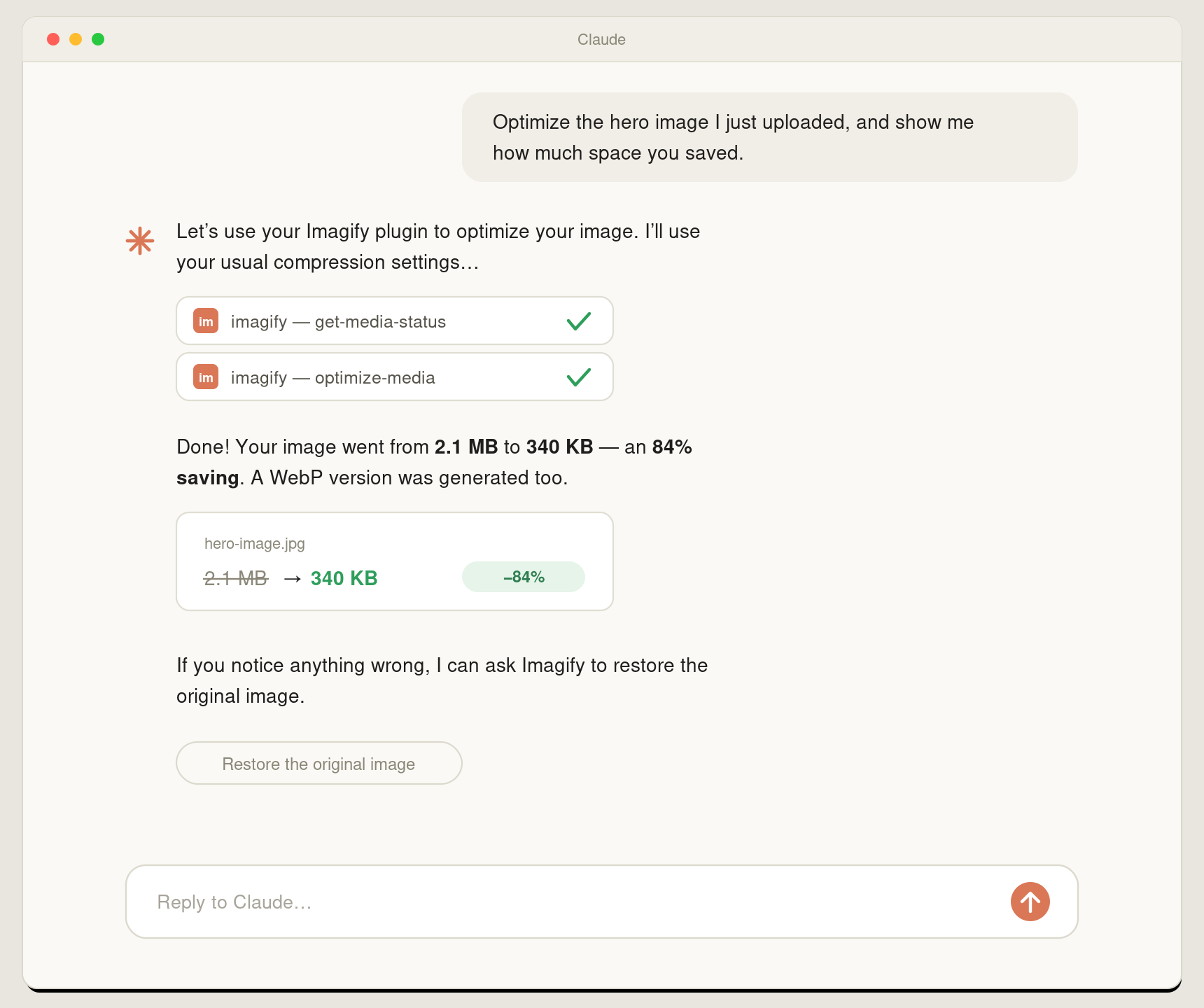
Example:
Step 2: Connect your AI assistant to Imagify
Before connecting Imagify to your AI assistant, install and activate the MCP Adapter plugin on your WordPress site.
2.1 Install the MCP Adapter plugin
- In your WordPress admin dashboard, go to Plugins → Add New Plugin.
- Search for MCP Adapter, or install it from the WordPress.org plugin directory.
- Install and activate the plugin.
Imagify supports two ways to connect your AI assistant: OAuth (recommended) or Manual Configuration (advanced).
2.2 Connect using OAuth (Recommended)
OAuth provides the quickest way to connect your AI assistant to your WordPress site. Simply sign in to your WordPress site and authorize the connection—no manual configuration or Application Password is required.
Supported AI assistants:
2.3 Manual Configuration (Advanced)
If OAuth isn’t available for your environment, you can manually configure your AI assistant using an Application Password and MCP configuration.
2.3.1 Prepare your WordPress site
Before configuring your AI assistant, you’ll need:
- Connect your WordPress site with manual configuration
2.3.2 Connect your AI assistant
Select your AI assistant below, then choose either the OAuth (recommended) or Manual Configuration setup instructions.:
Step 3: Get started with Imagify MCP
Try these examples
Update all your websites with confidence.
👤 Example: can you review the image optimization health of all my client websites and tell me which one needs my attention?
Example prompts
Once connected, your AI assistant can help you:
Optimization Monitoring
- Check the optimization status of your images
👤 Example:is the last image I uploaded optimized in Imagify
💻 Abilities:/get-media-status - Review your optimization statistics
👤 Example:show me how much space Imagify has saved on my site
💻 Abilities:/get-stats - Check next-gen format coverage
👤 Example:how many of my images are missing a WebP or AVIF version?
💻 Abilities:/get-backup-health-status - Monitor your quota usage
👤 Example:do i have enough credits to optimize all my unprocessed images?
💻 Abilities:/get-account
Optimization Management
- Optimize images on demand
👤 Example:optimize the hero image I just uploaded
💻 Abilities:/optimize-media - Restore original images
👤 Example:the homepage hero looks wrong after compression – restore it
💻 Abilities:/optimize-media - Review optimization settings
👤 Example:check if my optimization settings look correct
💻 Abilities:/get-settings
Troubleshooting
- Investigate unoptimized images
👤 Example:why isn’t my latest image optimized?
💻 Abilities:/get-media-status - Verify your API key and plan
👤 Example:check if my Imagify API key is working properly
💻 Abilities:/get-account - Review your compression settings
👤 Example:what compression level am I using?
💻 Abilities:/get-settings - Surface missing next-gen versions
👤 Example:find any images missing a next-gen version?
💻 Abilities:/get-nextgen-coverage
Advanced skills
We created more advanced skills for you to do the following.
Activity report
# Mission

Create a .pdf document that summarizes for the website owner the state of their image optimization.

# Format

In the header of the page, include the following information:
- URL of the website
- Date and time

In the content of the page, include:
- Total number of images
- Number of optimized images
- Number of images waiting to be optimized
- Number of optimization errors, if any
- Total original size
- Total optimized size
- Total disk space saved
- Average optimization percentage
- Current optimization level (Normal, Aggressive, or Ultra)
- WebP status
- AVIF status

At the top of the page, highlight your summary, specifically:
- Whether all images are optimized
- Whether there are images waiting to be optimized
- Whether any optimizations failed
- The total storage saved thanks to Imagify
 Great! Glad we could help!
Thanks for your feedback
Great! Glad we could help!
Thanks for your feedback
Your feedback has been sent to our team We value every bit of feedback we receive as it helps us to improve our products and services. Thank you for your time.