


Looking for an efficient way to convert your images to WebP and…
Have you ever looked at your website and thought, “Why are my images loading slowly?” Maybe you spent hours designing beautiful pages and choosing high-quality visuals, yet your site still feels slow.
Large, unoptimized images are one of the most common causes of poor website performance. They can slow down loading times, hurt Core Web Vitals, impact SEO and AI visibility, and create a frustrating experience for visitors, especially on mobile devices.
In this guide, you’ll learn why images load slowly, how to spot common image-related performance issues, and the best ways to improve image loading speed on WordPress, including how to optimize your images automatically with Imagify.
| Key Takeaways ✅ Slow-loading images are often caused by oversized files and outdated formats. Since images are typically the heaviest assets on a page, optimizing them can quickly improve performance. ✅ Modern formats like WebP and AVIF can significantly reduce image size while maintaining excellent visual quality. ✅ Images directly impact Core Web Vitals, especially Largest Contentful Paint (LCP) and Cumulative Layout Shift (CLS), which influence SEO rankings. ✅ Tools like GTmetrix and PageSpeed Insights make it easy to identify image-related performance bottlenecks and optimization opportunities. ✅ Imagify automates image compression, resizing, and WebP/AVIF conversion, reducing image file sizes by up to 90% while preserving quality. |
Why Are My Images Loading Slowly? (+ Easy Fixes)
The answer usually comes down to a few common image optimization mistakes: oversized files, outdated formats, missing lazy loading, or slow image delivery. However, most of these issues are easy to fix. Below, you’ll learn what’s causing the problem, how to solve it, and which tools and best practices can help keep your images fast and optimized.
1. Your Image Files Are Too Large
One of the most common reasons for slow-loading images is simply that the files are too large. High-resolution photos, oversized uploads, and uncompressed media contain far more data than visitors actually need to download.
As a general rule, images should be sized according to their purpose on the page. Uploading massive files when a smaller image would look identical only increases page weight and slows down loading times.
🔎 Example: You’re using a 3 MB image for a customer testimonial photo, even though a properly optimized 50 KB image would look almost identical on screen.
🛠️ Easy Fix: Compress your images before uploading them. Image compression removes unnecessary data from image files, making them smaller and faster to download. There are two main types of image compression, lossy and lossless:
- Lossless compression, which reduces file size without affecting image quality.
- Lossy compression, which achieves greater reductions by removing some image data that is often imperceptible to the human eye.
💡 Tools: Use an image optimization plugin that automatically finds the right balance between quality and performance. For instance, Imagify’s Smart Compression feature automatically compresses images while preserving visual quality.
2. You’re Using Outdated Image Formats
Traditional formats like JPEG and PNG are still widely used, but they are not always the most efficient. Modern formats such as WebP and AVIF offer better image compression while maintaining excellent visual quality, helping pages load faster.
For most websites, switching to next-generation formats is one of the easiest ways to improve image loading speed without sacrificing appearance.
🔎 Example: Google found that WebP images can be around 25–35% smaller than equivalent JPEG images while maintaining similar visual quality.
🛠️ Easy Fix: Convert your images to WebP or AVIF. These next-generation formats require less bandwidth, load faster, and improve rendering performance across devices. If you’re comparing WebP vs AVIF, both formats offer excellent compression. AVIF generally provides the highest compression rates, while WebP offers broader browser compatibility.
| Format | Typical File Size | Compression | Quality After Compression | Performance |
| JPEG | 600 KB | Standard | Excellent | Average |
| WebP | 450 KB | Better | Excellent | Very Good |
| AVIF | 350 KB | Best | Excellent | Excellent |
💡 Tools: Use Imagify to convert images directly from your WordPress dashboard. The plugin automatically serves WebP and AVIF versions whenever supported by the visitor’s browser.
3. Too Many Images Load at the Same Time
Even optimized images can create performance issues when too many are loaded simultaneously. Large galleries, image-heavy homepages, sliders, and ecommerce product grids often force browsers to download dozens of images before visitors can fully interact with the page.
Reducing the number of initial image requests helps improve both loading speed and user experience, especially on e-commerce stores with a large inventory.
🔎 Example: An online store displays 40 product images above the fold on its homepage, forcing visitors to download every image immediately, even if they only view the first few products.
🛠️ Easy Fix: Reduce the number of images loaded during the initial page render. Remove unnecessary visuals, simplify sliders, and prioritize the content visitors see first.
💡 Best Practice: Audit your pages regularly and remove decorative graphics, duplicate visuals, oversized sliders, and images that don’t support your content, improve conversions, or enhance the user experience.
4. Images Are Not Lazy Loaded
Without lazy loading, browsers attempt to load every image on the page immediately, including those visitors may never see. This creates unnecessary rendering requests and increases loading times.
Lazy loading delays offscreen images until users scroll near them, reducing initial page weight and improving performance.
🔎 Example: Images located at the bottom of a long page start loading immediately, even though visitors are still viewing the hero section at the top of the page.
🛠️ Easy Fix: Enable lazy loading so browsers only load images when they’re needed. Instead of downloading every image immediately, visitors only load what’s visible on screen, improving rendering speed and reducing page weight.
💡 Tools: WordPress includes native lazy loading by default, but additional optimization options are often available through performance plugins. WP Rocket automatically applies LazyLoad, among other performance optimizations, that help improve loading speed, PageSpeed performance score, and Core Web Vitals.
5. Images Are Larger Than Their Display Size
Many websites upload images at their original dimensions, even when they are displayed much smaller on screen. This forces browsers to download oversized files and then resize them on the fly.
Responsive image sizing is especially important for mobile users, where screen sizes are much smaller.
🔎 Example: A 4,000-pixel wide image is uploaded for a mobile content block that only displays the image at 400 pixels wide, resulting in unnecessary downloads and slower mobile performance.
🛠️ Easy Fix: Resize images according to their actual display size and use responsive image dimensions for desktop and mobile devices.
The table below provides practical guidelines for balancing image quality and performance:
| Image Type | Recommended Desktop Size | Recommended Mobile Size | Ideal File Size |
| Hero Banner | 1600–1920px wide | 360–768px wide | < 200 KB |
| Featured Image | 1200×630px | 600×315px | < 150 KB |
| Product Image | 800–1200px wide | 400–600px wide | < 150 KB |
💡 Best Practice: Pay particular attention to hero images and background format images. Because they are often the largest assets on a page, even small reductions in file size can significantly improve loading times and Largest Contentful Paint (LCP).
6. Your Images Are Delivered Slowly
Sometimes the images themselves are optimized, but the delivery process is slow. Poor hosting, missing caching, lack of a CDN, and long distances between visitors and servers can all increase image loading times.
Fast image delivery is particularly important for websites with international audiences.
🔎 Example: You’re an international photographer based in Paris, showcasing thousands of high-resolution images, but your website is hosted on an entry-level server without caching or a CDN. Clients located far from your server may experience slower loading times when browsing your site.
🛠️ Easy Fix: Deliver your images through a Content Delivery Network (CDN) and implement caching. A CDN stores copies of your images on servers around the world and serves them from the location closest to each visitor, reducing latency and improving loading speed.
💡 Tools: RocketCDN is an easy-to-use solution that integrates directly with WordPress. It automatically handles the technical setup and delivers your images through a global network without requiring complex DNS or CNAME configuration.
Now you know the most common image optimization issues and how to fix them. The next step is to make sure images are actually causing the slowdown. Here’s how to test image performance.
How to Check If Images Are Slowing Down Your Website
Before optimizing your images, you first need to determine whether they’re actually causing performance issues. Fortunately, a few tools can quickly reveal whether slow-loading images are hurting your website’s speed, Core Web Vitals, and user experience.
There are 3 ways to identify which images consume the most bandwidth and take the longest to load:
1. Use Google PageSpeed Insights
Google PageSpeed Insights (PSI) is one of the easiest ways to identify image-related performance issues. Google PageSpeed Insights images audits can reveal whether image delivery, sizing, or formatting issues are slowing down your website. This free tool powered by Lighthouse analyzes your page and highlights opportunities to improve speed and user experience.
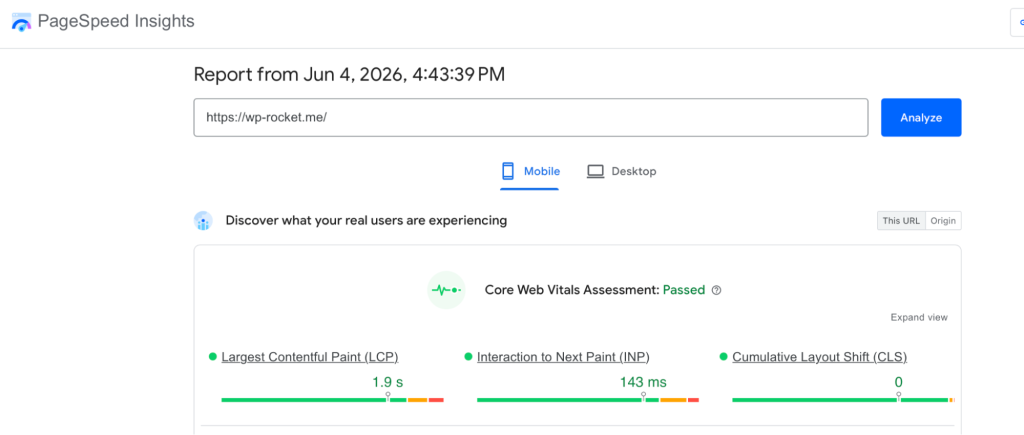
When reviewing your report, pay particular attention to image-related audits such as:
- Image elements have explicit width and height.
- Improve image delivery.
These recommendations often indicate that your images are larger than necessary, not compressed enough, or still using older formats such as JPEG and PNG instead of WebP or AVIF.
For example, if PSI recommends improving image delivery, it may be time to explore a WebP or AVIF conversion strategy to reduce file sizes and improve loading speed.
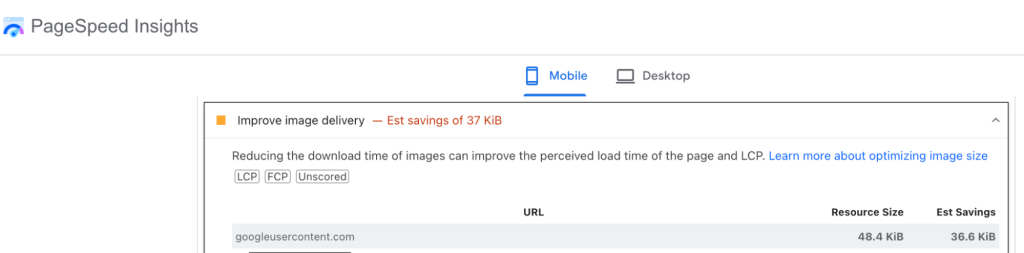
Limitations of PageSpeed Insights: While it does a great job of identifying global issues, it doesn’t always provide enough context to understand their impact. For example, it won’t tell you exactly how much page weight comes from images, which image is causing the problem, or how image requests affect rendering. It also doesn’t provide a waterfall chart, advanced testing options, or ongoing performance monitoring.
Think of PSI as a useful starting point for finding image optimization opportunities rather than a complete diagnostic tool.
2. Analyze Images With GTmetrix
If you want more detailed and actionable insights, GTmetrix is one of the best tools available for image and Core Web Vitals analysis. GTmetrix image optimization sections allow you to analyze image weight, loading times, and Largest Contentful Paint (LCP) to improve both user experience and SEO performance.
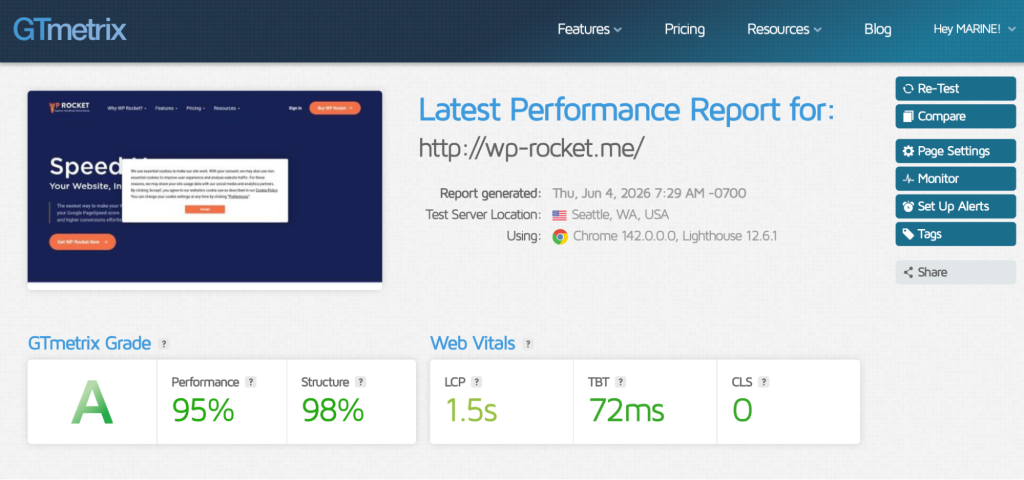
Unlike PageSpeed Insights, GTmetrix shows exactly how images affect your website’s performance. You can quickly see your page weight, the number of requests, loading time, and Core Web Vitals metrics, all in a single report.
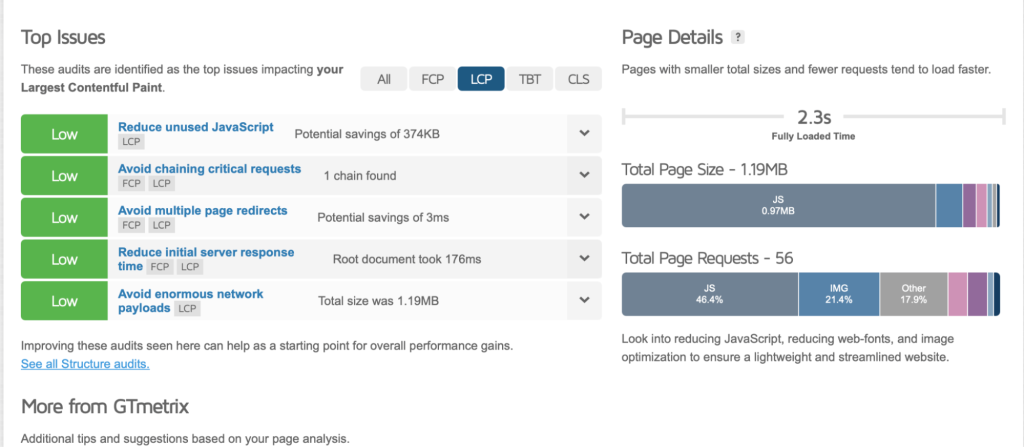
One of the most useful features is the Waterfall Chart, which visualizes every request made by your page. This makes it easy to identify oversized images, slow-loading assets, and files that delay rendering.
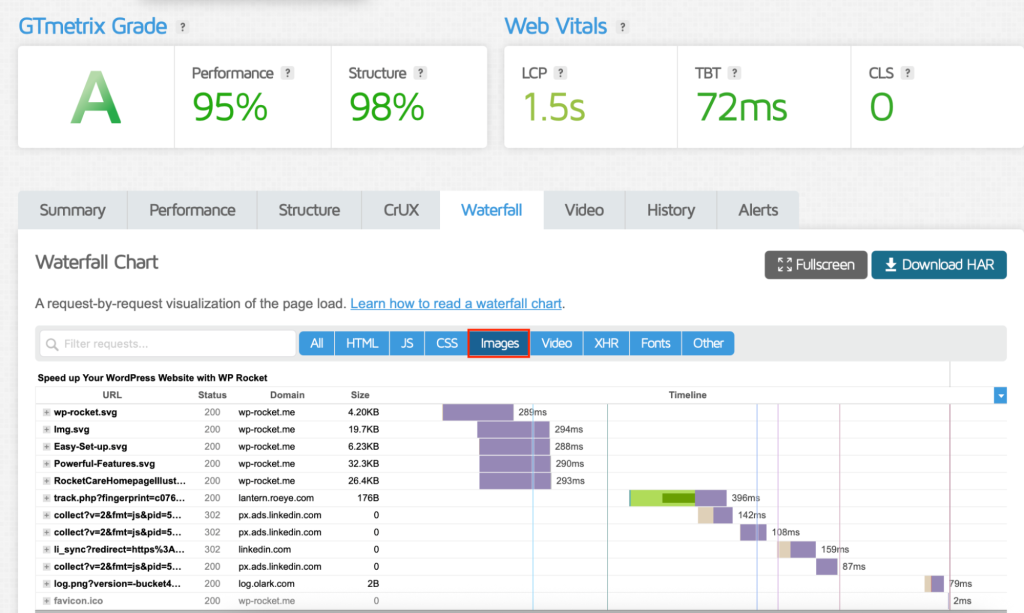
Since the LCP element is often a hero image, featured image, or large banner, GTmetrix is particularly effective at diagnosing image-related Core Web Vitals issues.
3. Identify Heavy Images Manually
You don’t always need a performance tool to spot image issues. Sometimes, a quick review of your website is enough to identify obvious optimization opportunities.
Check Your WordPress Media Library
Start by reviewing your WordPress Media Library. Oversized files are often easy to spot and may indicate opportunities for image compression or resizing.
How to check image sizes in WordPress:
- Go to Media > Library.
- Switch to List View.
- Click on an image.
- Review the file size and dimensions.
- Look for images larger than 500 KB. In our example below, we need optimization.
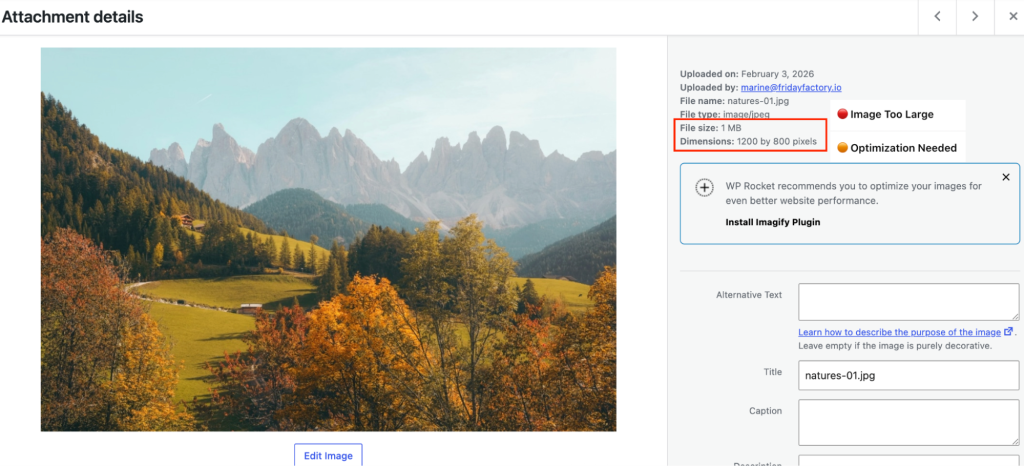
If you find images weighing several megabytes, they are likely contributing to slow-loading images and unnecessary page weight.
Inspect Images with Chrome DevTools
Google Chrome allows you to identify heavy images directly from your browser.
How to find large images in Chrome:
- Open your website in Chrome, right-click and select Inspect.
- Open the Network tab and reload the page.
- Filter requests by Img and sort by Size.
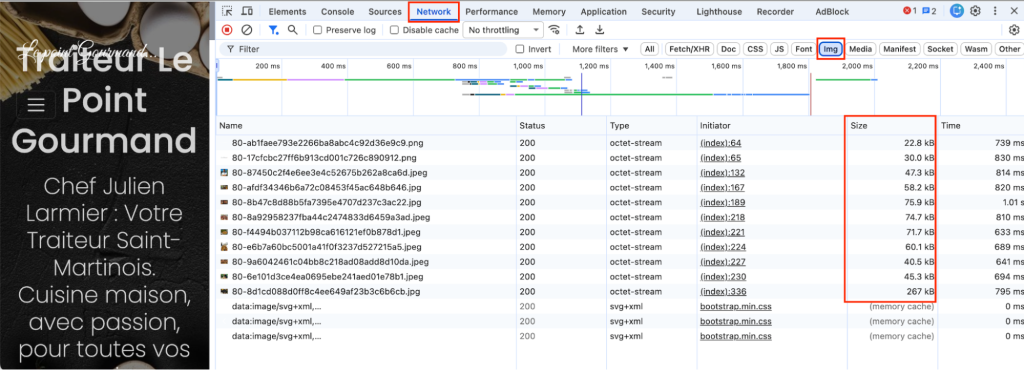
| 💡 Hint: Always review hero and background images manually. They often account for a large portion of page weight and frequently become the Largest Contentful Paint (LCP) element. |
The table below provides practical guidelines for balancing image quality and performance when you review your images one by one:
| Image Type | Recommended Desktop Size | Recommended Mobile Size | Ideal File Size |
| Hero Banner | 1600–1920px wide | 360–768px wide | < 200 KB |
| Background Image | 1920×1080px | 360×640px | < 200 KB |
| Featured Blog Image | 1200×630px | 600×315px | < 150 KB |
| Product Image | 800–1200px wide | 400–600px wide | < 150 KB |
| Thumbnail | 300×300px | 150×150px | < 50 KB |
| Logo | 250–400px wide | 160–250px wide | < 50 KB |
How Slow Images Affect Website Performance
WordPress image optimization should be at the heart of your website performance strategy. Why? According to HTTP Archive’s Page Weight report, images are the largest resource downloaded on the median webpage followed by JavaScript:
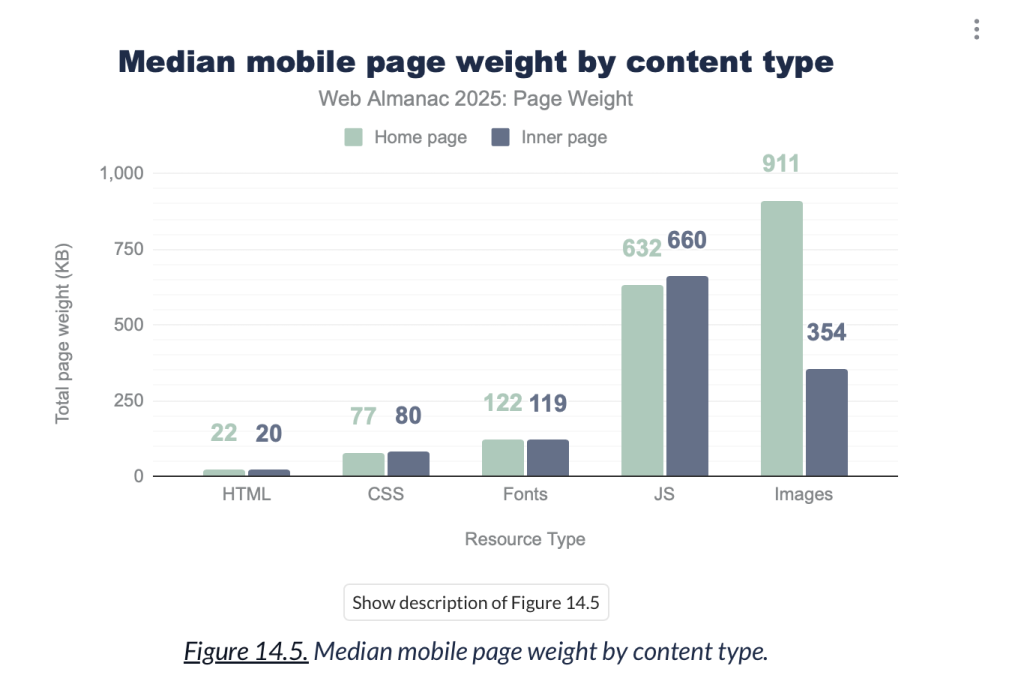
Unoptimized images directly impact website performance, user experience, Core Web Vitals, SEO, and even your visibility in AI-powered search results. Let’s go over the most important slow-loading image impacts:
1. Slower Loading Time
Large, unoptimized images increase the amount of data visitors must download before a page can fully load. The heavier the page, the longer the browser needs to render content and display images on screen.
This is especially problematic for image-heavy websites such as WooCommerce stores with many product images, portfolios, travel blogs, and photography websites, where a few oversized files can quickly add several megabytes to the page weight.
As a result, visitors spend more time waiting for content to appear, which can lead to frustration and cart abandonment.
2. Poor Core Web Vitals
Images play a major role in Google’s Core Web Vitals, which are three performance metrics used to evaluate user experience and help inform search rankings.
Largest Contentful Paint (LCP)
Largest Contentful Paint measures how quickly the largest visible element loads on a page. In many cases, that element is an image, such as a hero banner, featured image, or product photo.
When images are oversized, uncompressed, or served in inefficient formats, LCP can suffer significantly. That’s why optimizing Core Web Vitals images is often one of the fastest ways to improve overall performance.
Cumulative Layout Shift (CLS)
Cumulative Layout Shift measures visual stability. If image dimensions are not properly defined, content may suddenly move while the page loads.
We’ve all experienced it especially on mobile (and on a news website): you’re about to click a button, and the page suddenly jumps because an image or advertisement loads above it. This creates a frustrating user experience and contributes to poor CLS scores.
3. Worse Mobile Experience
Mobile users are often browsing slower networks and less powerful devices than desktop users. Large images therefore have an even greater impact on mobile performance.
Slow-loading images can delay page rendering, increase loading times, and make websites feel unresponsive. Remember that mobile users expect fast experiences and have many alternatives available, even a few extra seconds can send potential customers directly to a competitor’s website.
4. Lower SEO and AI Visibility
Website performance has become an important part of online visibility. Google has officially confirmed that page experience and Core Web Vitals are ranking signals, meaning slow pages may struggle to compete against faster alternatives.
The same principle increasingly applies to AI-powered search experiences. Search engines and AI systems aim to surface high-quality, accessible, and user-friendly content. Fast websites with optimized images provide a better experience for both users and crawlers, helping improve discoverability across traditional search (SEO) and AI platforms (AEO).
Common Image Optimization Mistakes
Image optimization mistakes can hurt performance, Core Web Vitals, and user experience. Here are some of the most common issues to avoid:
❌ Uploading Full-Resolution Photos
Uploading images directly from a smartphone or professional camera often results in files that are far larger than necessary. Always resize and compress images before publishing them and don’t use the HEIC format from iPhone, for example.
❌ Using PNG for Large Images
PNG is excellent for graphics that require transparency, but it is rarely the best choice for large photos or hero images. WebP and AVIF usually provide much smaller file sizes while maintaining excellent quality.
❌ Forgetting Mobile Optimization
A desktop image may look great on a large screen, but mobile users don’t need to download the same high-resolution file. Use responsive images to deliver appropriately sized versions for every device.
❌ Compressing Images Too Aggressively
Image compression is essential, but excessive compression can create blurry photos, visible artifacts, and a poor user experience. Aim for the right balance between quality and performance.
❌ Lazy Loading Above-the-Fold Images
Not every image should be lazy loaded. Images visible immediately when the page loads (especially hero images) should be prioritized rather than delayed, otherwise they can negatively impact Largest Contentful Paint (LCP).
❌ Not Using Next-Generation Formats
Sticking with JPEG and PNG means missing out on significant performance gains. Modern formats such as WebP and AVIF can dramatically reduce file sizes and improve loading times.
Image Optimization Checklist
Use this quick checklist before publishing new content to ensure your WordPress images contribute to a faster, more efficient website.
✅ Resize images before uploading.
✅ Compress images without sacrificing quality.
✅ Convert images to WebP or AVIF.
✅ Use responsive images and the srcset attribute.
✅ Optimize hero images and featured images.
✅ Enable lazy loading for below-the-fold images.
✅ Serve images through a CDN.
✅ Remove unnecessary images and sliders.
✅ Define image dimensions to prevent layout shifts (CLS).
✅ Test image performance with GTmetrix and PageSpeed Insights to identify image bottlenecks.
✅ Monitor Core Web Vitals regularly.
✅ The Largest Contentful Paint (LCP) element is often an image. Identify your LCP with GTmetrix and optimize it with Imagify.
✅ Automate WordPress image optimization with Imagify
| 💡 Hint: Image optimization is one of the fastest and most effective ways to improve loading times, reduce page weight, boost Core Web Vitals, and support better SEO performance. |
How Imagify Helps Speed Up Image Loading
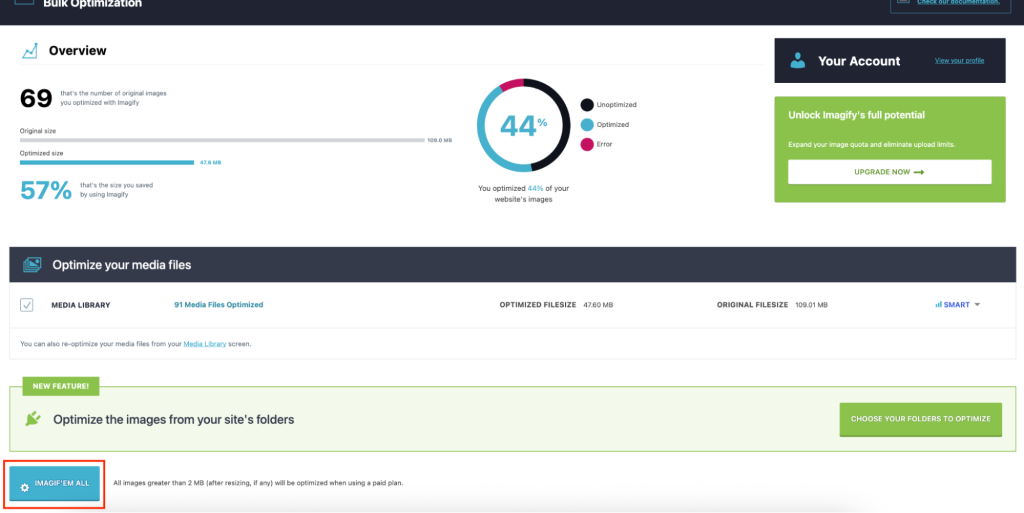
Imagify the easiest image optimization plugins for WordPress. It automatically compresses images using Smart Compression, which reduces file sizes without impacting image quality. All you have to do is click the imagify’em all button to optimize them all.
Beyond image compression, Imagify automatically converts your images to modern formats such as WebP and AVIF, helping browsers download smaller files and render content faster.
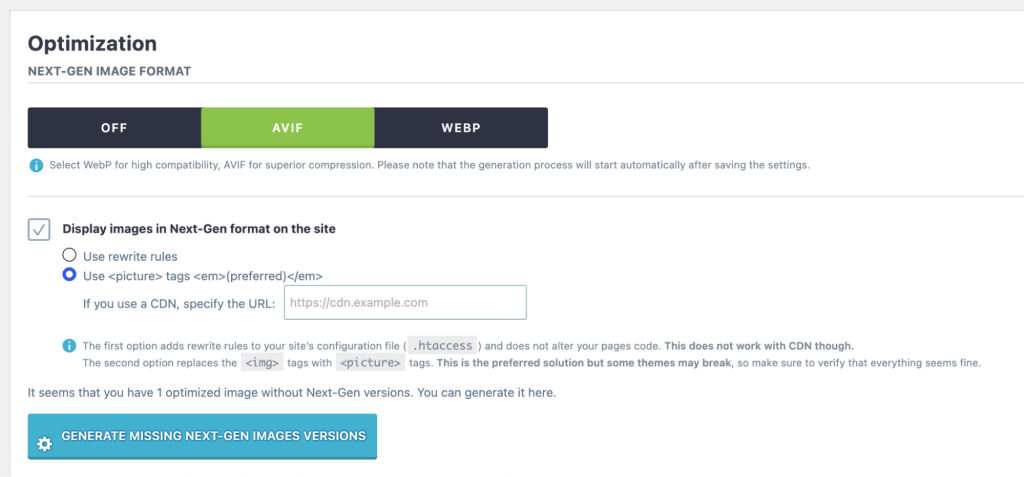
It also resizes oversized images on upload, preventing visitors from downloading unnecessarily large files.
The result with Imagify?
✅ An image optimized from 850 KB JPG to 67 KB AVIF (92% savings).
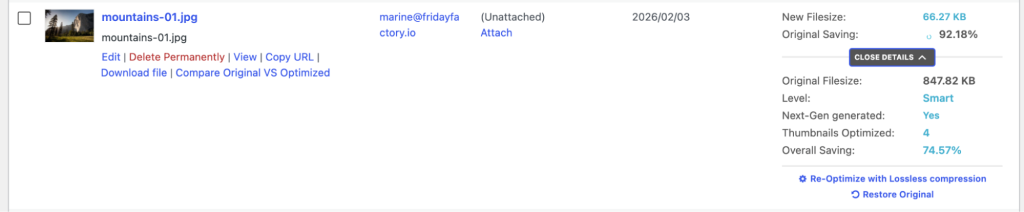
✅ Same visual quality before and after compression.
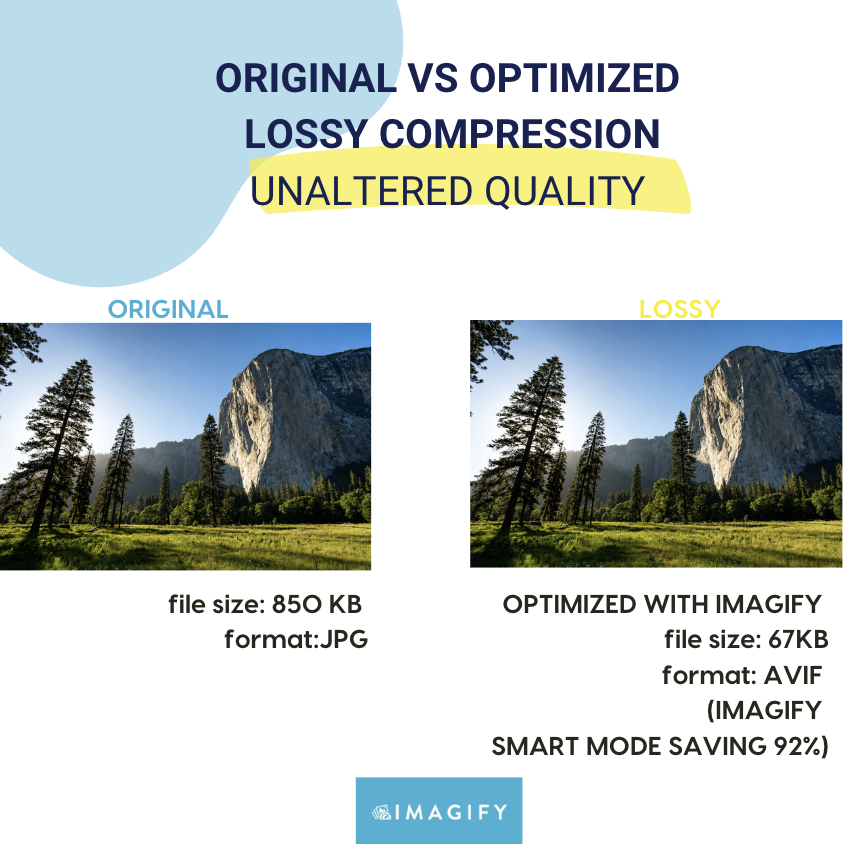
✅ JPG to AVIF (next-gen format) in one click.
✅ Faster loading times and improved Core Web Vitals.
✅ Less manual work for you, meaning that you save time.
How Imagify Helps Fix Slow-Loading Images (Summary Table):
Imagify automatically applies the most important image optimization best practices to help your website load faster without compromising image quality.
| Image Optimization Best Practice | How Imagify Helps |
| Compress images | It applies Smart compression and reduced image size from 850 KB to 67 KB (92% savings) while preserving quality. |
| Convert images to WebP or AVIF | It automatically converts JPG to WebP or AVIF. |
| Resize oversized images | It automatically resizes large images on upload. |
| Reduce page weight | Smaller files mean faster page rendering. |
| Improve Core Web Vitals | It helps optimize LCP and image loading performance. |
| Speed up image delivery | Bonus: WP Rocket is the easiest performance plugin that complements Imagify with additional image performance features such as lazy loading, critical image optimization, and automatic image dimensions. |
FAQ
Why Are My Website Images Loading Slowly?
Slow-loading images are often caused by oversized files, outdated formats, poor image compression, or inefficient delivery. As a result, browsers must download more data before rendering the page, leading to slower loading times, delayed content visibility, and poorer Core Web Vitals. Tools like Imagify can automatically optimize images to improve image loading speed.
Do Large Images Affect Core Web Vitals?
Yes. Large images often become the Largest Contentful Paint (LCP) element, one of Google’s Core Web Vitals metrics. If an image is too large or loads slowly, it can hurt your LCP score, user experience, and SEO performance.
Does Image Compression Reduce Quality?
If done properly, image compression should have little to no visible impact on quality. Modern compression techniques can significantly reduce file sizes while preserving the appearance of your images. Tools like Imagify use Smart Compression to find the right balance between performance and visual quality automatically.
What Is the Best Image Format for Website Speed?
WebP and AVIF are currently the best image formats for website performance. Compared to traditional JPEG and PNG files, they offer smaller file sizes and faster loading times. AVIF generally provides the highest compression, while WebP offers excellent browser compatibility.
How Do I Optimize WordPress Images Automatically?
The easiest way is to use an image optimization plugin like Imagify. It automatically compresses images with Smart Compression to preserve quality, converts them to WebP or AVIF, and optimizes new uploads directly from your WordPress dashboard.
Does Lazy Loading Improve Website Performance?
Yes. Lazy loading delays offscreen images until visitors scroll near them. This reduces initial page weight and helps browsers prioritize the content currently visible on screen, resulting in faster rendering and a better user experience.
Can Image Optimization Improve SEO and AI Visibility?
Absolutely. Image optimization helps reduce page weight, improve loading times, and boost Core Web Vitals, all of which support SEO performance. Faster, more accessible websites are also easier for search engines and AI-powered search systems to crawl, understand, and recommend.
Wrapping Up
Slow-loading images are often one of the biggest contributors to poor website performance, but they’re also one of the easiest issues to fix. By compressing images, resizing oversized files, and using modern formats like WebP and AVIF, you can significantly improve image loading speed.
Imagify automates these essential image optimization best practices, helping you build a faster website with minimal effort!
🚀 Ready to speed up your site? Try Imagify for free today and automatically compress, resize, and optimize your images so your website loads faster for every visitor.


 Speed Up Your Website in a Few Clicks
